Connect a model
This page shows how to connect the model that answers AI Agent questions in ThreatVIS Unified Security Operations Platform. You can use a commercial provider's service, or a model that you run yourself on your own network through the OpenAI-compatible option. Both are added in the same panel; they differ in what you prepare first.
Role needed: An Admin or Super Admin account.
Choose where the model runs
| Commercial provider | Your own model server | |
|---|---|---|
| Where questions and tool results go | To the provider's service, over the internet | To your server, on your network |
| What you need | An account and API key with the provider | A GPU server, model server software and an open-weight model. See Hardware and models for a self-hosted model. |
| Service to choose | OpenAI, Azure OpenAI, Anthropic, Google Gemini, Mistral or Cohere | OpenAI-compatible |
| Answer quality | Depends on the model you choose. Large commercial models are often stronger at tool use than models that fit on one GPU. | Depends on the model and hardware you choose |
| Who governs the data | The provider's terms | You |
Whichever you choose, the AI Agent keeps the same guardrails: it has read-only tools and reads only what each user's role allows. You can add several endpoints, for example a provider and a local model, and let users choose between them in the chat.
Read Data sent to the model provider before you connect a commercial provider.
Connect a commercial provider
Before you begin
- Get an API key from the provider for a model that supports tool calling. For Azure OpenAI, deploy the model in your Azure OpenAI resource first and note the resource address and the deployment name.
- Allow outbound HTTPS from the appliance to the provider's address. The default addresses are listed in Where it goes. If the appliance uses an outbound proxy on Interfaces & Proxy, the requests go through it.
Add the endpoint
-
Select the Settings gear, then AI Agent under Collection & Automation.
-
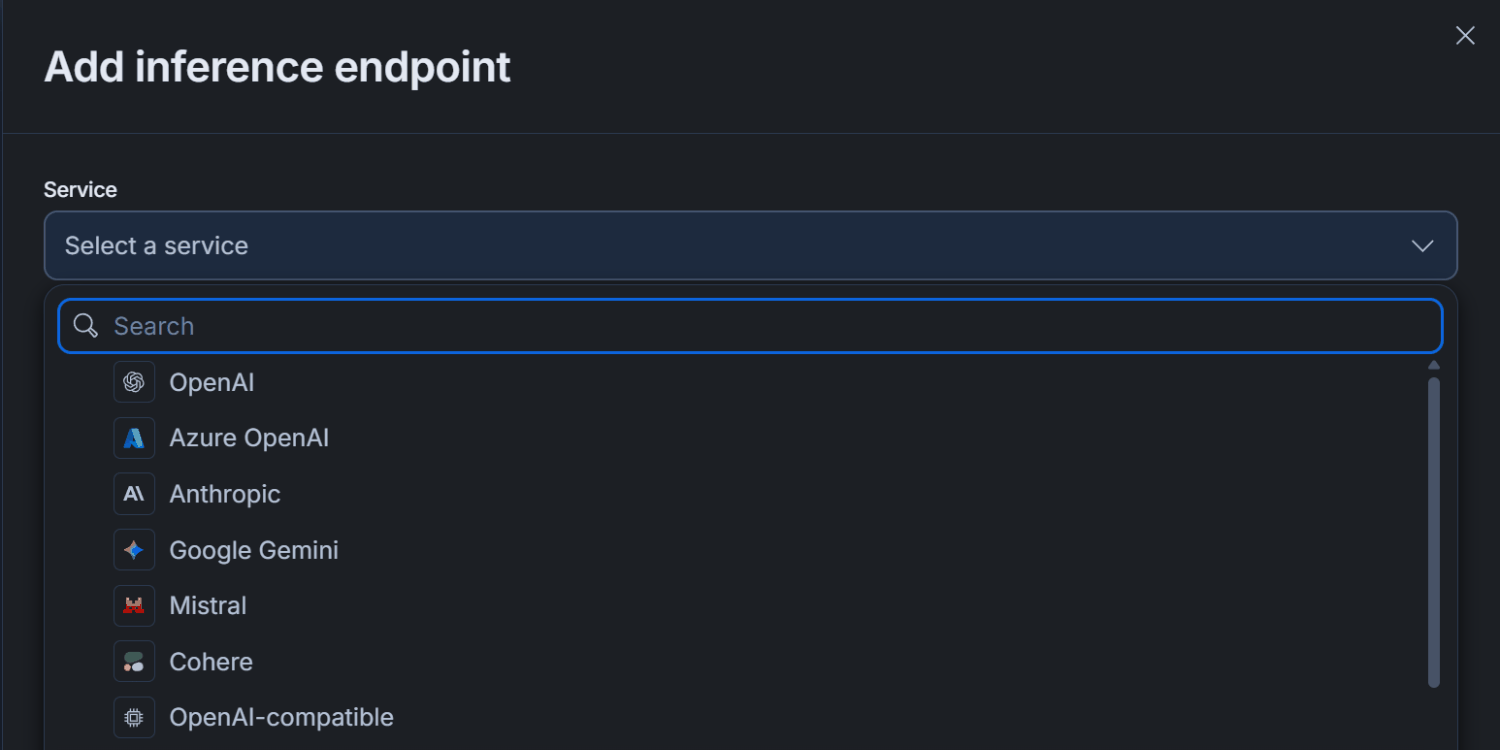
Under Model endpoints, select Add endpoint. The Add inference endpoint panel opens.
-
In Service, choose the provider, for example Anthropic.
-
Under Authentication, paste the API Key. It is stored encrypted on the appliance and is never shown again.
-
Under Settings, open Model ID. Once the key is entered, the list shows the models the provider offers that key. Choose one, or type a model name.
- For Azure OpenAI, enter the Endpoint, for example
https://my-resource.openai.azure.com, and the Deployment instead. The deployment name is used as the model. - Leave Max Tokens empty to allow replies of up to 4096 tokens.
- For Azure OpenAI, enter the Endpoint, for example
-
Optionally, open More options and enter a Display name, for example
Anthropic (default). This is the name users see in the chat's model menu. More options also holds the optional URL and, for OpenAI, Organization. Leave URL empty to use the provider's own address. -
Check the Inference endpoint ID, for example
anthropic-main. It cannot be changed after you save. -
Select Save.
The console tests the endpoint before it stores anything: it sends one short request with one test tool and checks that the model calls it. If the test passes, the console shows Endpoint ... added and the endpoint appears in the Model endpoints table. If it fails, the panel shows The endpoint could not be saved and the reason; see An endpoint will not save.
Continue with Turn the AI Agent on.
Connect your own model server
With your own server, the AI Agent's questions and the data its tools read go only to that server. ThreatVIS USOP talks to it in the same way it talks to OpenAI, so any model server that offers an OpenAI-compatible chat completions interface can work, for example vLLM, SGLang, the llama.cpp server or LM Studio.
Check the server first
Check each of these before you add the endpoint:
| Requirement | Why |
|---|---|
| The model server runs on a separate host, not on the appliance. | The console refuses an address that points at the appliance itself or at a loopback address. |
| The server offers the OpenAI chat completions interface, with streaming and tool calling. | The AI Agent streams every answer and works by calling tools. A server or model without tool calling fails the connection test. |
| Tool calling is switched on in the server. | Some servers need it switched on when the model is started. For example, vLLM needs --enable-auto-tool-choice and the --tool-call-parser that matches the model. See your server's documentation. |
| The model's context window is at least 32,000 tokens, and preferably 64,000 or more. | Each request carries the agent's instructions, the tool definitions, the chat so far and the tool results. Some servers start models with a much smaller window unless you set it. |
| The model is good at tool calling. | Tool-calling quality matters more than general chat quality. See Which models to run. |
| The appliance can reach the server's port, and the server's host name resolves from the appliance. | Open the port between the two hosts. A name that does not resolve fails with could not resolve host. |
| An API key is set on the server. | Recommended, so only the appliance and people you choose can use the model. ThreatVIS USOP sends it as a bearer token. |
If the model writes out its reasoning before answering, use the server's option that returns the reasoning separately from the answer. Otherwise the reasoning appears as part of the answer in the chat.
Choose how to secure the connection
The connection carries your questions and the events, Cases and other data the agent reads. Protect it as you protect the console.
https://(recommended). The appliance checks the server's certificate against the public certificate authorities it trusts. Use a certificate for the server's DNS name issued by a public certificate authority. A self-signed certificate, or one issued by your organisation's internal certificate authority, is refused and the test fails with Could not reach the model provider (SSLError). The console has no setting to add a certificate authority for model endpoints.http://. Allowed, for example on a dedicated network segment between the appliance and the model server that only you control. The data then crosses that segment unencrypted.
If an outbound proxy is enabled on Interfaces & Proxy, requests to your model server also go through that proxy, so the proxy must be able to reach the server. See Interfaces, proxy and DNS.
Find the URL to enter
The URL is the base address of the server's OpenAI-compatible interface, including its version path, which is usually /v1. ThreatVIS USOP adds /chat/completions to send questions and /models to list the models. Do not include either in the URL.
| Your server answers on | Enter as URL |
|---|---|
https://llm.example.com:8000/v1/chat/completions | https://llm.example.com:8000/v1 |
http://198.51.100.20:1234/v1/chat/completions | http://198.51.100.20:1234/v1 |
Add the endpoint
- Select the Settings gear, then AI Agent under Collection & Automation.
- Under Model endpoints, select Add endpoint. The Add inference endpoint panel opens.
- In Service, choose OpenAI-compatible.
- Under Authentication, enter the API Key you set on the server. Leave it empty if the server has none.
- Under Settings, leave Max Tokens empty for replies of up to 4096 tokens, or enter a smaller number if your server limits replies.
- Enter the URL, for example
https://llm.example.com:8000/v1. - Open Model ID. Once the URL is entered, the console asks the server for its models and lists them. Choose the model, or type its name exactly as the server reports it. If the list shows only suggestions, the console could not ask the server; the tip next to Model ID gives the reason.
- Open More options and enter a Display name that tells users the model runs on your network, for example
Local model (on premises). - Check the Inference endpoint ID, for example
local-model. It cannot be changed after you save. - Select Save.
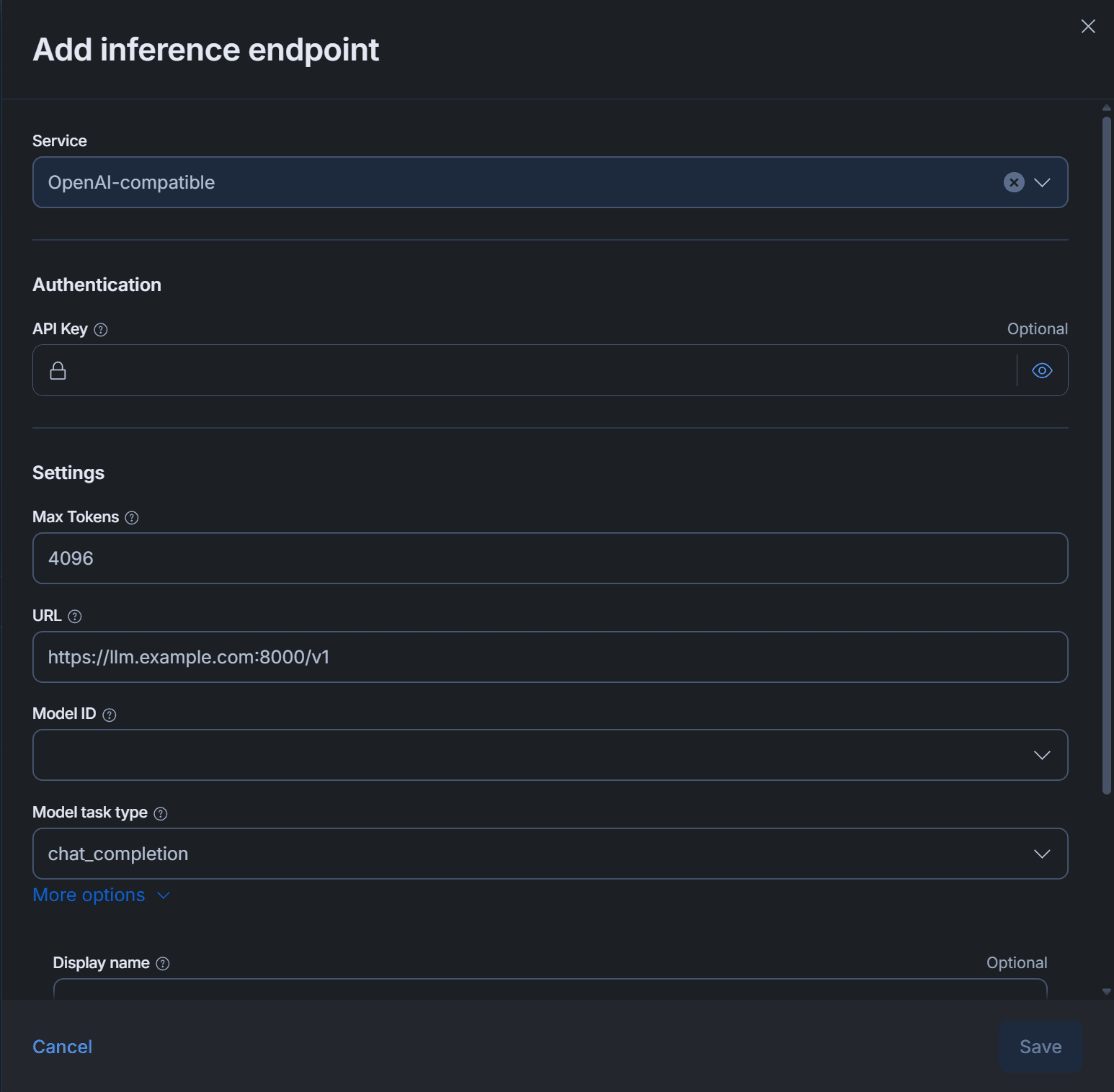
Model task type is always chat_completion; leave it as it is.
The console tests the endpoint first. It saves it only if the server answers and the model calls the test tool. A local model can take longer than a provider to answer the first time while it loads.
Example values:
| Field | Example |
|---|---|
| Service | OpenAI-compatible |
| API Key | The key set on your model server |
| URL | https://llm.example.com:8000/v1 |
| Model ID | The model name your server lists |
| Max Tokens | Empty (4096) |
| Display name | Local model (on premises) |
| Inference endpoint ID | local-model |
Timeouts
The appliance waits up to 10 seconds to connect to the server and up to 2 minutes for the server to start answering or to send the next part of an answer. A server that takes longer, for example because it is busy with other requests or the prompt is very long, fails with The model provider did not answer in time. Size the server for the number of users who will ask questions at the same time; see Hardware and models for a self-hosted model.
Turn the AI Agent on and check it
- On Settings, AI Agent, under General, switch on AI Agent.
- In Default model, choose the endpoint that new chats use.
- Select Save changes. The console shows Settings saved.
- Open the AI Agent with the sparkle button at the bottom right of any page, and ask a question that needs a tool, for example:
How many Cases were opened in the last 24 hours, by priority? - Under the answer, select N tools responded and check that the agent called a tool and that the response holds your data.
If the answer contains no tool steps, the model answered from its own knowledge and not from your data. Choose a model with better tool calling, or check the server's tool calling settings.
For the full settings, see Turn on the AI Agent.