How AI access is controlled
An AI model connected to ThreatVIS Unified Security Operations Platform cannot do whatever it wants. It never reaches your data directly. It can only ask for one of the tools that ThreatVIS USOP publishes, each tool runs with the permissions of the signed-in user and no more, and every call is recorded. This page explains these controls for the two ways AI works with ThreatVIS USOP:
- the AI Agent, the chat built into the console; and
- an MCP client, an AI application that you run elsewhere and connect through the Model Context Protocol (MCP).
How a request flows
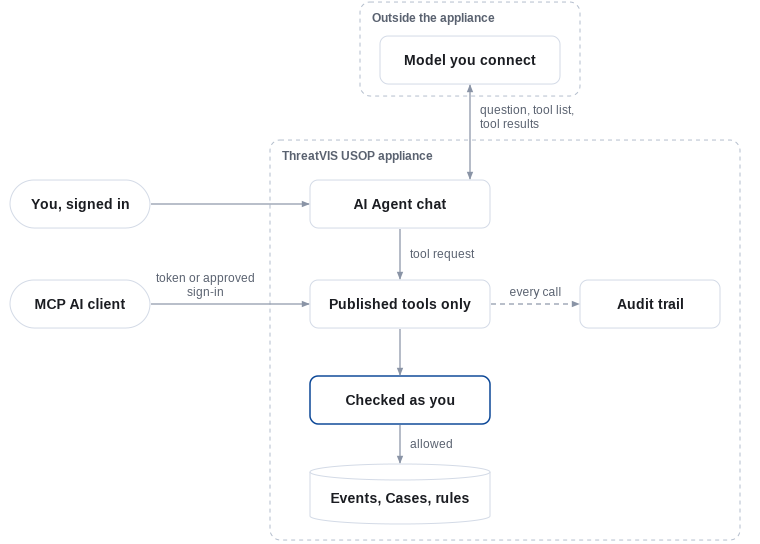
The model decides which tool to ask for and with which values. ThreatVIS USOP decides whether the call runs. A model has no other way into the appliance: it cannot run commands on the appliance or read data that a tool does not return.
The limits that always apply
| Limit | What it means |
|---|---|
| Published tools only | The model can call only the tools in the list it is given. A request for any other tool, or a call with values that do not fit the tool, is refused. |
| As the signed-in user | Every tool runs as the user who asked, through the same permission checks as the console. A role without Cases: Read gets no Case data from AI either. A role with an Event pre filter sees only the events that filter allows. If the user loses a permission, AI loses it too. |
| Within the access granted | The AI Agent has read-only tools only. An MCP client gets only the tools of the access levels (scopes) that the user granted it, and never more than the user's own role allows. |
| Switched on by an administrator | The AI Agent and MCP access are both off until an Admin or Super Admin turns them on, and either can be turned off again at any time. |
| Recorded | Every tool call is written to the audit trail, with the user, the tool, the values sent and whether it succeeded. |
The AI Agent
The AI Agent can read and cannot change anything.
- Read-only tools. It is given only read tools: searching events, reading Cases and alerts, entities, Detection Rules, Reference Lists, log sources and threat intelligence look-ups. There is no tool that changes a Case, an alert, a rule, a list or a setting, and none that runs a playbook or a response action. When you ask for a change, the agent tells you which page to use. See What the AI Agent can read.
- Only the tools your role allows. Before each question, the agent checks your role and offers the model only the tools that your role permits. A tool your role cannot use is not even described to the model.
- Runs as you, briefly. Each question runs with a short-lived authorisation of your own account, which the tools use to read. The model never sees it.
- Bounded work. One answer can use at most 12 model calls. A tool result passed to the model is shortened when it is long, and lists return at most 200 items.
- Data cannot widen access. Events can contain text written by someone else, for example an email subject or a command line. Whatever such text says, the agent still has only read tools, reads only what you may read, and every call is recorded. Check the tool calls under an answer before you act on it.
- You can check every step. Under each answer, the console lists each tool the agent called, with the values sent and the response returned. See Use the AI Agent.
The AI Agent's tools are controlled by roles only. The Tool catalogue switches on Settings, AI / MCP Access apply to MCP clients and do not change the AI Agent. To keep a kind of data away from the agent, remove the permission from the role; see Limiting what the agent can read.
MCP clients
An MCP client can read, and with the right access levels it can also change data. Several controls stand between the client and your data.
| Control | Effect |
|---|---|
| MCP access switch | Off by default. While it is off, no client can sign in and no token works. |
| Sign-in and approval, or a token | A client connects only after a user approves it on a ThreatVIS USOP page, or with an MCP token that a user created. Admin and Super Admin accounts must have two-factor authentication enrolled first. |
| Access levels | The user chooses the access levels when approving a client or creating a token, and can grant less than they hold. read gives read-only tools. respond and the soar levels give tools that change data or run playbooks. admin is offered only to Admin and Super Admin accounts. A tool outside the granted levels is not listed to the client, and a call to it is refused as an unknown tool. |
| Role permissions | Every call is checked against the user's role, as in the console. Granting respond to a user whose role cannot change Cases does not let the client change Cases. |
| Tool catalogue switches | An administrator can switch any single tool off for every client. A switched-off tool is neither listed nor callable, whatever the access levels or role. |
| Marking of tools that change data | Each tool tells the client whether it only reads or changes data. Many AI clients use this to ask you before a tool that changes data runs; ThreatVIS USOP does not ask a second time. |
| Expiry and revocation | Tokens expire after 30 to 365 days. A token can be revoked and an approved client disconnected at any time; it stops working within a minute. Disabling or deleting the user stops it too. |
| Rate and size limits | A playbook whose trigger declares containment is limited to three runs per hour for each user. Results are shortened when large, and lists return at most 200 items. |
The model behind an MCP client is chosen and run by whoever runs the client, not by ThreatVIS USOP. Everything a tool returns to the client can reach that client's model. Grant only the access levels the client needs, and check which model it uses.
See What an AI client can and cannot do for every tool and the role permission it needs.
Read and change at a glance
| AI Agent | MCP client | |
|---|---|---|
| Reads events, Cases, entities, rules | Yes, within your role | With read, within your role |
| Comments on or changes Cases, acknowledges alerts | No | With respond and Cases: Set |
| Changes Detection Rules, watchlists, lookup tables | No | With respond and the matching Set permission |
| Runs, builds or publishes playbooks | No | With the matching soar level and SOAR permissions |
| Administrator-only tools | No | With admin, for Admin and Super Admin accounts only |
| Acts as another user | No | No |
Who controls what
| Control | Where | Who |
|---|---|---|
| Turn the AI Agent on or off, add or remove model endpoints | Settings, AI Agent | Admin or Super Admin |
| Turn MCP access on or off | Settings, AI / MCP Access, Server | Admin or Super Admin |
| Switch single MCP tools off | Settings, AI / MCP Access, Tool catalogue | Admin or Super Admin |
| Revoke any token or disconnect any client | All MCP tokens, All connected applications | Admin or Super Admin |
| Choose a client's access levels, revoke your own tokens and clients | Settings, AI / MCP Access | Each user |
| What any AI may read or change | The user's role | Whoever manages roles; see Roles and permissions |
What is recorded
Each tool call made by the AI Agent or an MCP client is an audit event with the action tool_call, the user, the tool name, the values sent and the outcome. Failed and refused calls are recorded too, with the reason, for example a permission the role lacks or, for an MCP client, a tool outside the granted access levels or switched off by an administrator. Values with names such as password, secret, token or key are masked. Changes to the AI Agent settings, model endpoints and endpoint tests, and to the MCP settings, are recorded as well.
To list recent tool calls, run this search as an Admin or Super Admin, or with a role that has Settings access:
source=log_* | where observer.type = 'Audit' and event.action = 'tool_call' | head 100
Add user.name and event.outcome as columns to see who called what and whether it worked. See Audit trail.
Chats with the AI Agent are stored on the appliance and visible only to the user who started them.
What leaves the appliance
Only the AI Agent sends data out, and only to the model endpoint an administrator connected. It sends the question, the tool list and the tool results that the model needs to answer. Data sent to the model provider lists every item. To keep all of it on your own network, run the model yourself; see Connect a model.