Administer MCP access
AI clients can use ThreatVIS Unified Security Operations Platform through the Model Context Protocol (MCP). Each client acts as a user and never has more access than that user's role. This page covers what only an administrator controls. For connecting a client or creating a token, see AI access through MCP.
Role needed: An Admin or Super Admin account. Other accounts see the page but cannot change the switch, and do not see the administrator sections below. The role permissions in the role editor do not control this page.
MCP access is off by default
Select the Settings gear, then AI / MCP Access under Collection & Automation. Until MCP access is on, the page shows MCP access is turned off. While it is off, no client can sign in and existing tokens do not work.
To turn it on:
- Under Server, switch on Allow MCP access to this appliance.
- The console shows MCP access turned on.
The same switch turns it off again, and the console shows MCP access turned off. Give your clients the Server URL shown on this page; select Copy to copy it.
Administrator accounts need two-factor authentication
An Admin or Super Admin account must have two-factor authentication enrolled before it can approve a client or create a token. Without it, Allow stays unavailable on the approval page. Accounts of type User have no such rule.
Review every token
Under All MCP tokens, you see every token on the appliance, with Name, Owner, Access, Created, Expires, Last used and Status. Select the Revoke icon in a row and confirm Revoke to cut a token off. Clients using it stop working within a minute. A revoked token cannot be restored.
Deleting a user account removes the tokens it owns; see Manage user accounts.
Review connected applications
Under All connected applications, you see every client a user has approved, with the user for each. Disconnect any of them. The client can connect again only if the user signs in to it again.
Allow web redirect addresses
Clients that run on a desktop work without setup. A web-based client must have its return address allowed first, or its registration fails.
- Under Client sign-in, find Allowed web redirect addresses.
- Type an exact
httpsaddress, as the client's documentation gives it, and press Enter. An address with a#fragment, or one that does not start withhttps, is refused with Enter an https address without a #fragment. - Select Save addresses. The console shows Allowed redirect addresses saved.
Under Registered clients, you see each client that has registered, with Client, Redirects to and Registered. Select the Remove icon to remove a client and disconnect it for every user. It must register again to sign in.
Switch tools off
Under Tool catalogue, every tool MCP clients can use is listed with its Scope, its Availability and an On switch. Availability is Available, Not licensed, Not enabled or SOAR unreachable. A tool that changes data carries a Changes data badge. Use Find a tool and the scope list to narrow the table.
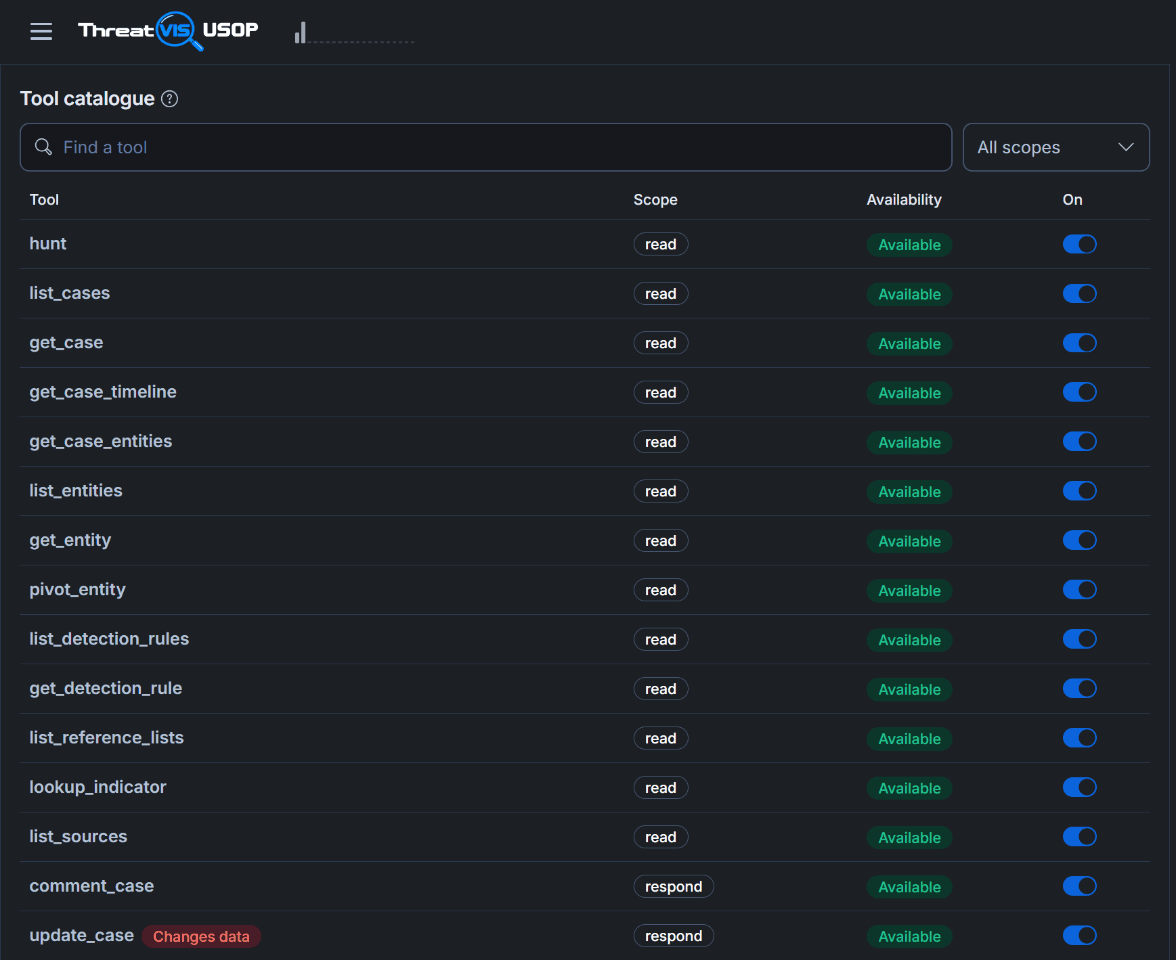
Switch a tool off to remove it for every client. It is neither listed to nor callable by any client, whatever the token's access levels or its owner's role. A call to it is refused and recorded in the audit trail. Switching a tool on does not give any client more than its own access levels and role already allow.
The switches apply to MCP clients only. The console's AI Agent has its own read-only tools, controlled by each user's role; see How AI access is controlled.