Use the AI Agent
This page shows how to ask the AI Agent a question in the ThreatVIS Unified Security Operations Platform console and how to manage your conversations.
Role needed: Any signed-in account, once an administrator has turned the AI Agent on. What the agent can read for you depends on your role; see What the AI Agent can read. The AI settings item and the Manage link in the model menu are shown to Admin and Super Admin accounts only.
Open the AI Agent
The AI Agent is a round button with a sparkle icon, at the bottom right of every console page. Select it, or press Ctrl+; (⌘; on a Mac), to open or close the chat. Drag the button to move it; the console remembers where you leave it.
The chat opens as a floating window beside the button. To change how it appears, select More (the three dots) in its header:
| Item | What it does |
|---|---|
| Dock to side / Float window | Switches between a window over the page and a panel at the right edge that the page makes room for. You can resize either. |
| Open in full screen | Opens the conversation on its own page, with a list of your chats on the left. |
| AI settings | Opens Settings, AI Agent. Shown to Admin and Super Admin accounts only. |
If the AI Agent is not on, the message box is disabled and reads The AI Agent is turned off, or No model is configured yet when no model has been added. Ask an administrator to turn it on.
Ask a question
- Open the AI Agent. A new chat shows How can I help you?
- Type your question in the box that reads Ask anything. Press Enter to send, or Shift+Enter for a new line. A message can be up to 20,000 characters.
- Optionally, select the model name at the bottom left to choose another model. The list shows Recommended (the default) and Other. Your choice is remembered in your browser.
- Read the answer as it streams in. While it works, the chat shows Agent is generating a response.
- To stop an answer, select Stop.
The agent also receives the title and console address of the page you are on. It does not receive what the page shows.
Write the question as you would to a colleague, and bound it: name a time range, a host, a user or a Case. A broad question can make the agent run several searches. One answer is limited to 12 model calls. If it reaches the limit it says so, and you can ask a narrower question or ask it to continue.
Read an answer
Under the answer you can:
- Select the line N tools responded to see each tool the agent called. Select a tool to open Parameters sent and Response returned. A failed call is marked.
- Select Copy response to copy the answer.
- Select Regenerate response to ask again. It is offered on the latest answer only.
- Select the time badge to see the execution time, the Tokens sent and Tokens received, and View response JSON.
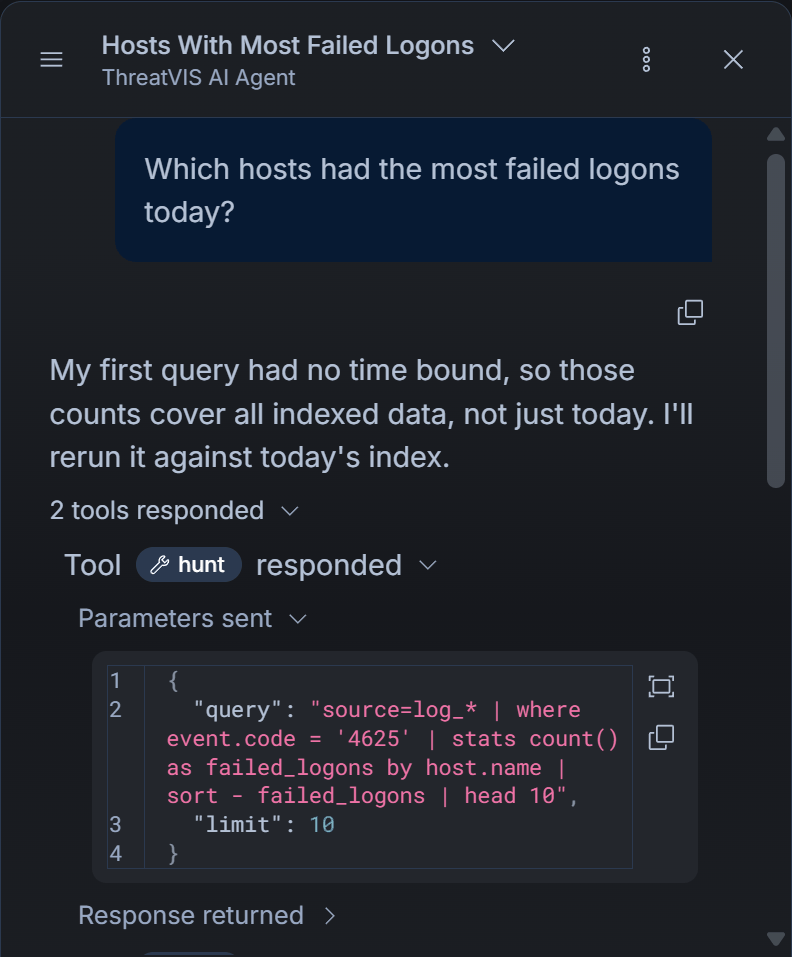
Every search or lookup the agent makes is listed this way, so you can check how it reached an answer and rerun the search yourself in Search.
Answers are written in Markdown. The agent quotes Case numbers, rule names, hosts and addresses as the tools returned them.
Manage your chats
Every chat is saved for you and is visible only to you. After the first answer the chat gets a title. A chat holds at most 100 questions; start a new one when it is full.
| To do this | Do this |
|---|---|
| Start a new chat | In the chat window, select the menu icon at the top left, then New chat. In full screen, select New. |
| Open an earlier chat | Select the menu icon and choose it from the list. |
| Find a chat | Type in Search chats. In full screen, select Search. |
| Rename a chat | Open the menu next to the title and select Rename, enter a Conversation name and select Save. |
| Delete a chat | Open the menu next to the title and select Delete, then confirm Delete. This cannot be undone. |
Deleting your account deletes your chats.