Sign-in security
The Access Security page sets the rules for passwords, sessions and failed sign-ins in ThreatVIS Unified Security Operations Platform. The rules apply to every account that has a password held by the appliance.
Role needed: To view the page, Access Security: Read with Settings access, or an Admin or Super Admin account. To save changes, Access Security: Set and Settings access.
Open the page
Select the Settings gear, then Access Security under System Configuration. Change the fields, then select Save at the top right. The console shows Access Security settings saved.
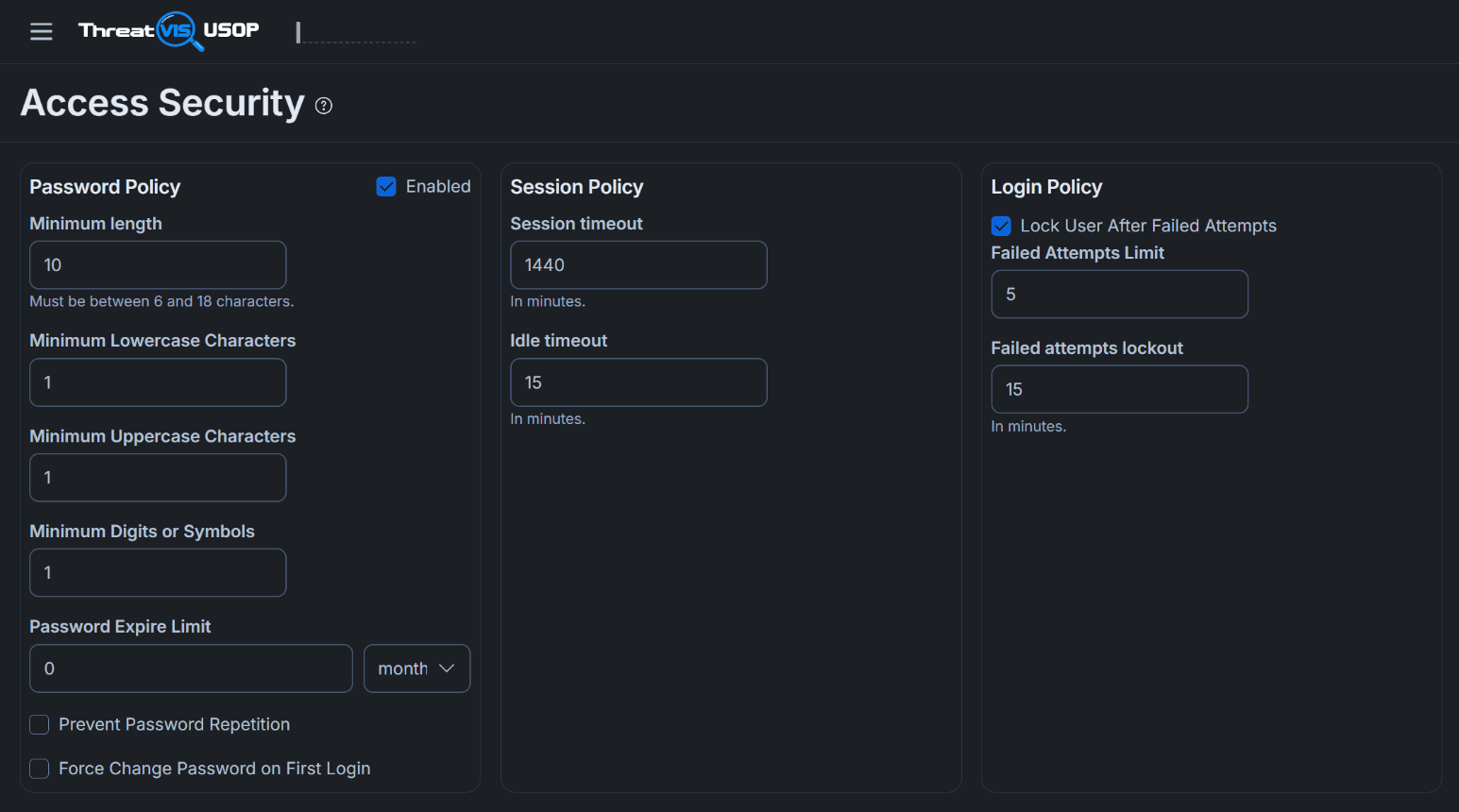
The Password Policy, Session Policy and Login Policy panels at their default values.
Password policy
The Password Policy card has an Enabled tick box. It is on by default.
| Field | Meaning | Default |
|---|---|---|
| Minimum length | Fewest characters. Allowed range 6 to 18. | 10 |
| Minimum Lowercase Characters | Fewest lower-case letters. | 1 |
| Minimum Uppercase Characters | Fewest upper-case letters. | 1 |
| Minimum Digits or Symbols | Fewest digits or symbols together. | 1 |
| Password Expire Limit | Maximum password age, in days or months. | 0 |
| Prevent Password Repetition | Stops a new password matching a recent one. | Off |
| Prevent Repetition Count | How many recent passwords are checked. Shown when repetition is prevented. | 3 |
| Force Change Password on First Login | Marks each account you create as needing a new password. | Off |
The rules are checked whenever a password is set: when you create an account, when you set a new password for one, when someone changes their own password, and when someone resets it. They do not change passwords that already exist. If a new password breaks a rule, the console says which one.
With Enabled off:
- passwords have no length or character rules;
- the expiry limit you set is ignored;
- the repetition check is skipped;
- Force Change Password on First Login is not applied to new accounts.
Password expiry
A password expires 90 days after it was last set. A Password Expire Limit above 0, with the policy enabled, replaces the 90 days. With the limit at 0, or the policy off, the 90 days apply.
A person with an expired password cannot sign in. To give them a usable password, a Super Admin sets a new one under User Accounts, or the person uses Forgot password? if password reset is set up.
Force a change at first sign-in
With Force Change Password on First Login on, each account you create afterwards is marked as needing a new password. To give the person a usable password, a Super Admin sets a new one under User Accounts, or the person uses Forgot password? if password reset is set up. The setting does not affect accounts that already exist.
Session policy
The Session Policy card has two fields, both in minutes.
| Field | Meaning | Default |
|---|---|---|
| Session timeout | How long a sign-in lasts. | 1440 |
| Idle timeout | How long an inactive sign-in lasts. | 15 |
When a session ends, the person returns to the sign-in page with Your session has expired - please sign in again. Signing in again from anywhere ends the account's earlier session.
Login policy
The Login Policy card controls lockout.
| Field | Meaning | Default |
|---|---|---|
| Lock User After Failed Attempts | Locks an account after repeated failed sign-ins. | On |
| Failed Attempts Limit | Failed sign-ins in a row that cause a lock. Shown when lockout is on. | 5 |
| Failed attempts lockout | Minutes the account stays locked. Shown when lockout is on. | 15 |
A locked account shows Account locked at sign-in. It unlocks by itself when the lockout time ends. A Super Admin can unlock it sooner; see Manage user accounts. A successful sign-in resets the count of failures, and so does resetting the password with the emailed link.